


Microsoft Word remains one of the most accessible and popular tools for writers who want to self-publish. Whether you’re preparing a novel, memoir, guide, or any type of manuscript, knowing how to format book in Word properly can make a huge difference in presentation and readability. While many authors focus on writing the perfect story, formatting is just as essential if you want your book to look professional and be accepted by platforms like Amazon KDP or IngramSpark.
Fortunately, Word offers a variety of built-in tools that simplify the book formatting process. You don’t need to be a designer or hire a formatter to make your manuscript look polished. With attention to margins, fonts, line spacing, headers, footers, and section breaks, even a beginner can prepare a print-ready book.
In this guide, we’ll walk through each step you need to take to format your book correctly using Microsoft Word. From setting up your page layout to managing chapters and inserting page numbers, these instructions are beginner-friendly and practical. By the end, you’ll not only understand how to format book in Word but also be ready to export it as a PDF or DOCX for publication or printing.
Let’s dive into the tools and techniques that will help you turn your raw manuscript into a professional book layout.
Set Up the Page Layout and Margins First
Set up your page settings first, then write or paste your content in. The correct layout is the first step in formatting a book in Word. In Word, go to the “Layout” tab, select “Size,” and then pick the trim size you want, which is typically 6″ x 9″ for paperbacks. Next, choose “Custom Margins” after clicking “Margins.” To make room for binding, use a gutter margin on the inside, which is typically 0.75 to 1 inch.
If you’re formatting for print, select “Mirror Margins”. This guarantees that even and odd pages are positioned appropriately. To make space for headers, footers, and page numbers, adjust the top and bottom margins.
Activating the “Show/Hide” paragraph button is also necessary in order to monitor hidden formatting marks. These will help you avoid unnecessary spacing errors and manual indents. Publish my book is a common aim for authors ready to share their work with the world. Whether choosing traditional routes or self-publishing platforms, writers can prepare their manuscripts and decide how to distribute their books effectively to reach readers.
Create Chapter Headings and Use Styles
To keep things clean and organized, use Word’s built-in Styles feature. Apply “Heading 1” for chapter titles and “Normal” or “Body Text” for the main content. This is a foundational part of how to format book in Word, as it allows you to easily generate a table of contents later.
When separating chapters, always insert a “Page Break” instead of using multiple returns. To do this, place your cursor before the chapter heading, click “Insert,” then choose “Page Break.”
One key benefit of styles is that you can make global formatting changes. For example, if you decide to change all chapter titles from bold to italic, you only need to update the Heading 1 style once. Ebook publisher platforms like Amazon KDP, Smashwords, and Apple Books make it easy for authors to distribute digital versions of their books. These services support various formats and give access to large online markets, often with simple upload and pricing tools.
Set Up Page Numbers, Headers, and Section Breaks
Another step in how to format book in Word is inserting professional-looking page numbers and headers. Begin by dividing your manuscript into sections using “Section Break (Next Page).” This lets you apply different headers or footers to different parts of your book, like removing page numbers from the title page or first chapter.
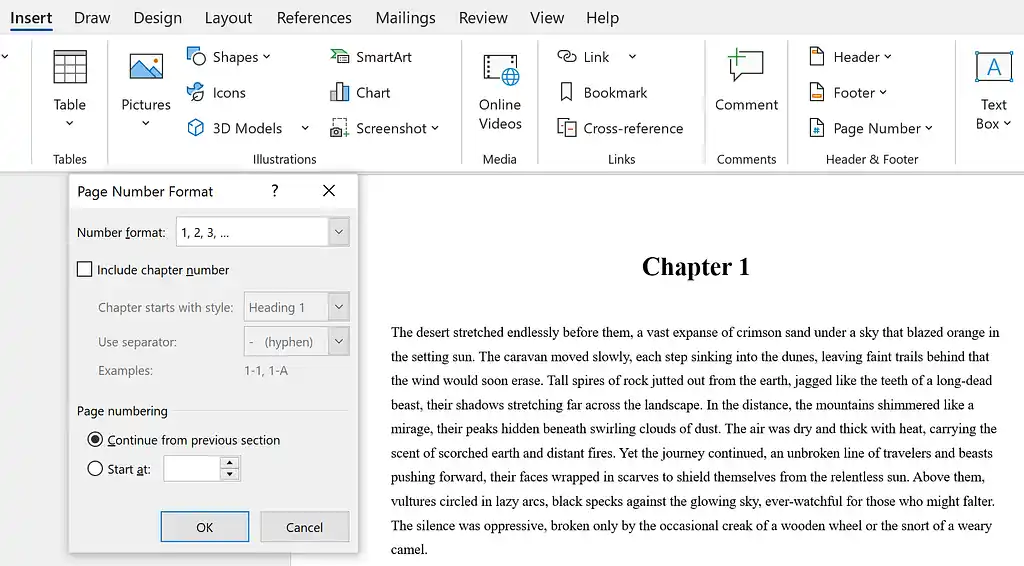
To insert page numbers, go to the “Insert” tab, click “Page Number,” and choose “Bottom of Page” or “Top of Page.” Use “Different First Page” if you don’t want page numbers on the first page of each section. Also select “Different Odd & Even Pages” to vary headers for a professional printed look.
Add your book title or author name in the header section using the same logic. Just double-click the header area and enter the text. Ensure the font size is smaller than body text, typically 10 pt. Self publisher authors manage the entire publishing process themselves, from editing and formatting to marketing and distribution. This approach gives them full creative freedom and higher royalty potential, making it an attractive option for many modern writers.
Insert Front and Back Matter Properly
The final section of formatting includes your front and back matter. This might include your title page, copyright page, dedication, acknowledgments, and an author bio. Knowing how to format book in Word means understanding that these sections also need structure.
Start your title page on the very first page, center everything, and avoid adding a page number. Insert a “Section Break” between each major part of your book (e.g., between the title page and the start of the manuscript). This gives you full control over page numbers and header formatting.
The dedication and acknowledgments can be simple one-page sections. Use normal paragraph styles and align text to the left or center, depending on your preference. The author bio should go at the end and may include a short paragraph, author photo (optional), and links to your website or social media.
At this point, double-check formatting in the midbody to ensure the layout matches industry standards. Font size, line spacing (typically 1.15 or 1.5), and paragraph indents should be consistent throughout.
In summary, mastering how to format book in Word empowers authors to present their manuscripts in a clean, professional layout ready for publishing. Whether you’re preparing for print or digital release, setting correct margins, using styles, inserting headers and page numbers, and organizing sections properly are all vital. Don’t underestimate the importance of formatting, it influences the reader’s experience and determines whether your book is taken seriously. With just a bit of practice and attention to detail, Word becomes a powerful tool for self-publishing success.